
WordPress One Click Install on Hosting (Easy & Fast)

WordPress One Click Install is a simple WordPress installation process on your host, which supports a one-click step to get your site WordPress ready.
“WordPress One-Click Install is like a vending machine coffee—instant, easy, and gets the job done, but barista-level customization requires manual setup.” ☕🚀
If you are starting a new site, then One Click WordPress Install will take you one step ahead in your site setup.
Now, how will you know which host offers One Click Install?
Well, here is the catch.
In this guide, you will find the list of one-click WordPress hosting companies. So you can start your site in just a click. Also, the step-by-step process to install WordPress in one click.
When I started this site, I used Hostinger’s one-click install option, and it literally saved my time.
Sites using auto-installers have 30% fewer misconfigurations than manual setups.
Source: Sucuri Security Report (2023)
Let’s dive in right now…
List of One Click WordPress Installation Web Hosting(s) to choose
Now, first, I will show you the different WordPress one-click install hosting(s) out there.
Here’s a list of popular hosting companies that offer one-click WordPress installation.
| Hosting Provider | One-Click WordPress Install | Notes |
| Hostinger | Yes | Managed WordPress hosting with auto-installer. Also an official WordPress.org recommendation. |
| Bluehost | Yes | Official WordPress.org recommendation. |
| GoDaddy | Yes | Fast setup, AI builder included. |
| DreamHost | Yes | Pre-installed WordPress, daily backups. |
| HostGator | Yes | One-click install on shared plans. |
| A2 Hosting (Hosting.com) | Yes | Fast, reliable, free domain for 1 year. |
| one.com | Yes | 1-click install, free themes, easy migration. |
| WebSpaceKit | Yes | Instant WordPress launch in India. |
| IONOS | Yes | Click & Build WordPress installer. |
| DigitalOcean (via Cloudways) | Yes | 1-click install, managed cloud hosting. |
| MilesWeb | Yes | Free 1-click install, India-based. |
| Verpex | Yes | 1-click install, SSL, and backups included. |
| Cloudexter | Yes | 1-click install, daily backups, ultra security |
So, these are the hosting companies that provide the one-click WordPress installation to make the process easy.
If you find any other hosting that is not included in the list, you can comment below.
Now I will guide you on how you can actually do the process easily step-by-step.
On most of the hostings you can easily install WordPress in one click. I will show you how to install WordPress in one click with some of the hosting providers.
One Click WordPress Install on hPanel With Hostinger
Let’s start with Hostinger.
Log in to your Hostinger account and go to the websites section and then the website list. There you will see your website list (existing websites, if any).
Note: Hostinger has its own hPanel like cPanel. However, this hPanel is easier than cPanel.
In order to create a new WordPress website with one click, just click the “Add Website” button in the right corner.
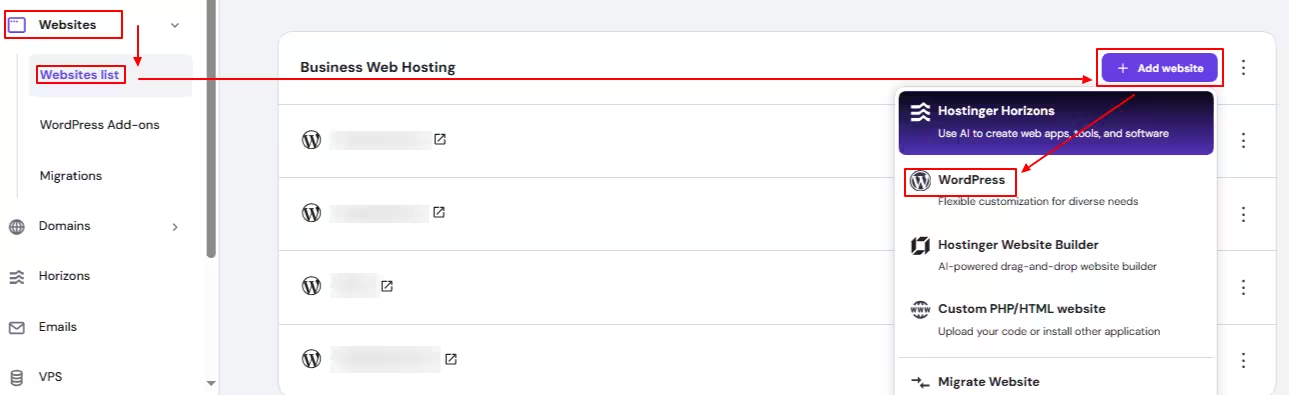
And select WordPress from the options. And you will go to the next redirected page.
Now, you have to enter the WordPress admin language, admin email, and admin password to create a new account for your WordPress website.
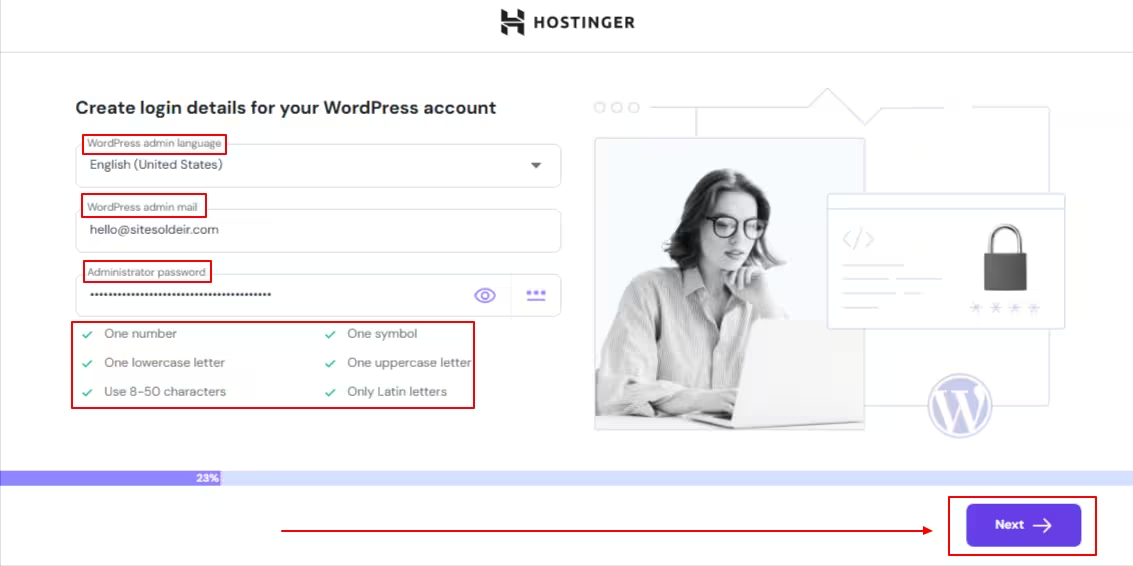
With these details you can log in to your WordPress dashboard with this URL: “yoursite.com/wp-admin” (WordPress creates this default URL for login).
And hit the next button. Again, you will go to the next redirected page.
Here you will see three options: “Create a website with AI and pre-built websites and themes OR create a blank site“, from which you have to select any one.
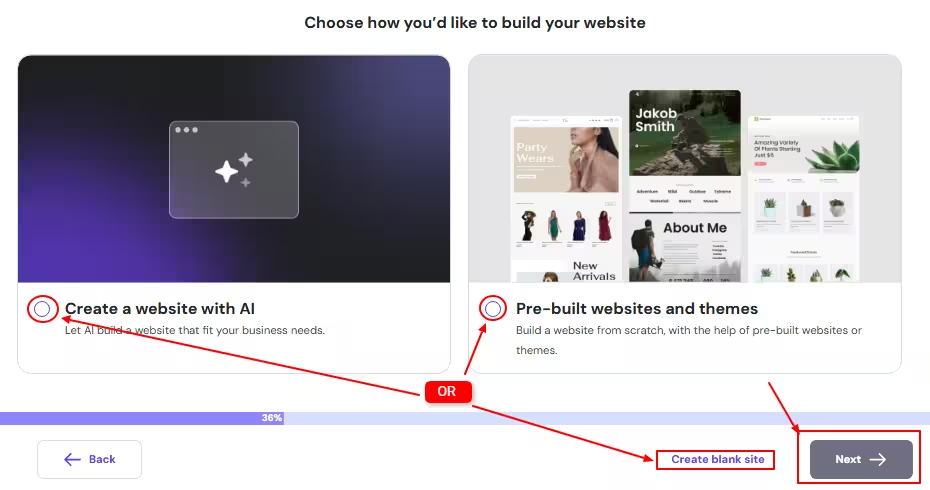
Once you select any one option, hit the next button, and you will go to the domain setup page.
Here, you need to enter the domain name.
You have three options here.
Option one: If you have your existing domain on another domain name provider or on Hostinger, you can add it here.
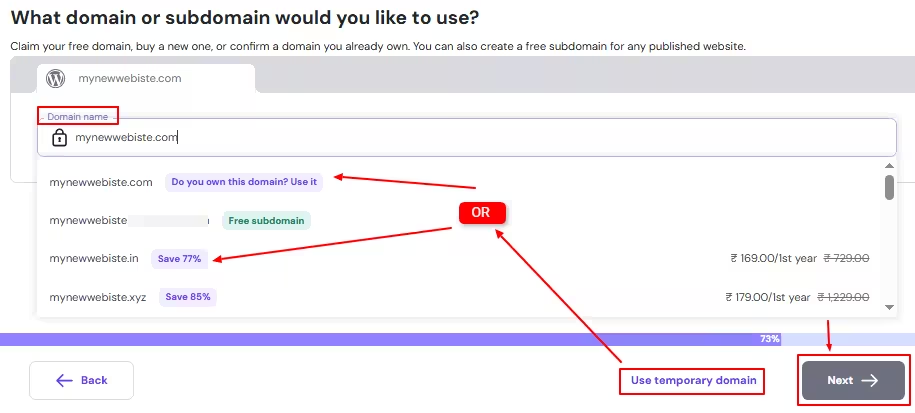
Option Two: If you have purchased new hosting, then you can search your free domain (Hostinger provides a free domain for the first year with some plans) and add your domain name here.
Option Three: If you are planning to purchase a domain name, then you can use a temporary subdomain from Hostinger. And you connect with your new domain later.
Finally, hit the next button, and the installation process will begin.
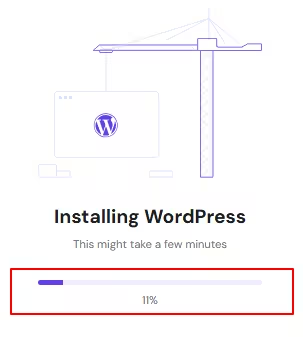
Then, you will land on your WordPress dashboard.
Note: The next time when you want to log in to your WordPress dashboard. Use the default login URL (yoursite.com/wp-admin) and enter the login details that were created at the start.
This is a simple step-by-step guide to install WordPress in one click. Still, if you encounter any problem, you can freely comment below.
Pros and Cons to choose One Click option Wisely
Pros
- Installs WordPress in under 2 minutes vs. 30+ minutes for manual setup.
- Eliminates the need for FTP, database setup, or coding knowledge.
- Many hosts auto-configure secure permissions and basic hardening.
Cons
- Some hosts bundle unnecessary plugins (e.g., cache plugin, SEO tools). However, you can uninstall them.
- Advanced users may prefer manual setups for fine-tuned server settings (PHP, MySQL).
Now, you are good to go…
Which hosting are you going to choose?
Also, let me know if I missed any one-click WordPress install hosting in this guide. I’ll add it as soon as possible.